Digital accessibility is one of the key pillars for ensuring that everyone can learn on equal terms, regardless of their technical, physical or cognitive abilities.
Inequality exists not only on a technological level but also on a sensory level, and course creators and administrators must be aware of these limitations and rely on e-learning platforms to help bridge the digital divide.
For instance, a learner with a visual impairment may struggle to progress if an image’s alt text is poorly configured or if documents cannot be read by screen readers. That’s why it’s crucial for both courses and e-learning platforms to comply with basic international accessibility standards, ensuring truly inclusive training.
This guide outlines what you need to consider when creating an online course to ensure it is accessible and meets regulatory requirements.
What does it mean for a course to be accessible?
But what does it mean for a course to be accessible? The concept of Digital Accessibility goes far beyond having a visually appealing and functional design. It’s about understanding the learning barriers that people may face and adapting both content and interface to address them.
This is achieved by offering flexible options and alternatives for every type of learner, so they can perceive, understand, navigate and interact with the content without any issues—from audio descriptions and high-contrast colours to screen magnifiers.
These accessibility adaptations aren’t chosen at random. There are internationally recognised Web Content Accessibility Guidelines (WCAG) defined by the World Wide Web Consortium (W3C). These WCAG Principles include things like text spacing, keyboard shortcuts, pointer gestures, or labelling every on-screen element, among many others.
An online course doesn’t need to meet every single one of these recommendations, but it must comply with basic requirements. Depending on the adaptations, there are different Types of Web Accessibility and three levels of conformance:
- Conformance Level A: This is the minimum level of compliance. It meets the basic requirements for a platform to be usable by people with some form of disability. These include essential criteria such as keyboard-only navigation or providing alt text for images.
- Conformance Level AA: This level adds further accessibility requirements. It is the recommended standard for professional e-learning platforms and is the certification held by evolCampus. It includes additional elements such as higher colour contrast, live video captions, resizable text, or compatibility with screen readers. This is also known as the WCAG AA level.
- Conformance Level AAA: This is the most stringent level of compliance and the hardest to achieve. It incorporates all previous requirements and adds further features such as sign language interpretation for video content, even higher colour contrast, or glossaries for uncommon words and synonyms.
Standards and certifications you should know about
- Global web accessibility standards: The WCAG 2.1 and WCAG 2.2 Web Content Accessibility Guidelines, created by the W3C, provide the technical foundation and global requirements for ensuring Digital Accessibility. These are considered the essential digital accessibility standards.
- European regulations: The EN 301 549 standard extends the WCAG guidelines and applies to all ICT products and services. Public sector organisations—and many private companies—must follow this regulation to comply with the European Accessibility Act (EAA).
Therefore, an e-learning platform for a training centre must meet all these standards to certify a Universal Design for Learning and guarantee equal access for all, regardless of ability.
Common barriers in e-learning and how to avoid them
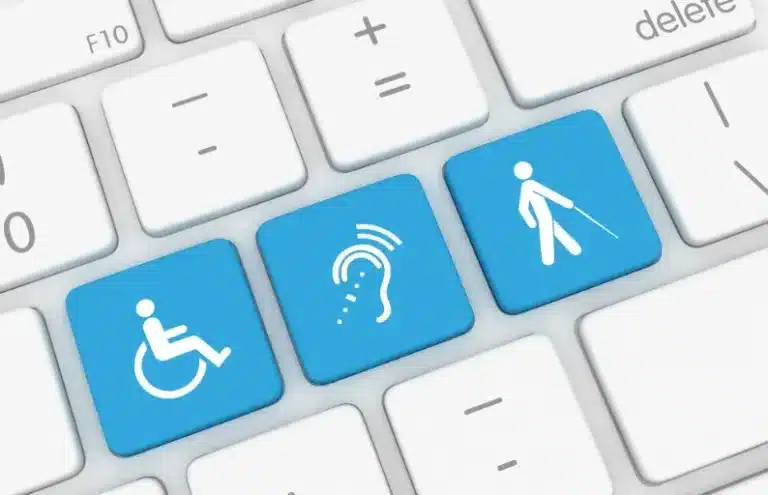
Some barriers are more common than others—especially those related to visual and auditory elements. It’s crucial to understand them in order to meet the specific needs of these learners and ensure they can access training without facing any obstacles. This is a core principle of the Universal Design for Learning.
1. Visual barriers
A person with low vision or colour blindness may encounter issues such as poor contrast between the background and text, small buttons, or visual elements like icons and text that are too small to identify properly.
A blind person will require buttons, icons, and images to have descriptive labels so they can understand where they are navigating and what content they are accessing at any given time.
To address these visual barriers, the recommended solutions include:
- Using readable fonts, at least 16 px in size.
- Ensuring a minimum colour contrast of 4.5:1—for example, black text on a white background—to guarantee the accessibility of digital text.
- Adding alt text to images, buttons, and icons to describe each element clearly.
- Avoiding reliance on colour alone to convey information—for example, not using colour-coded charts as the only resource.
- Providing documents in formats compatible with screen readers.
2. Auditory barriers
Auditory barriers are another major obstacle when it comes to accessing digital training based on video or audio, such as live classes or multimedia resources. Important information can also be missed if course notifications are delivered using sound alone.
For both deaf individuals and those with partial hearing loss, some basic measures that should be implemented include:
- Adding synchronised subtitles to all videos.
- Providing transcripts for all audio content and podcasts.
- Ensuring that important information is also conveyed visually—such as through alert icons or messages.
- Offering ways to communicate with the tutor via message, chat or forum is also crucial for learners with speech impairments.
3. Motor barriers
A person with motor difficulties or limited mobility may struggle to type, use a mouse, or interact with a touchscreen—especially if clickable elements are too close together, too small, or require complex actions such as solving a puzzle or rotating an image.
For those with reduced mobility, e-learning platforms can offer solutions such as:
- Enabling full navigation using keyboard controls, with the fewest keystrokes possible.
- Increasing the size of buttons and spacing between them to make clicking easier.
- Removing time limits for completing activities or filling out forms.
- Avoiding complex interactions like drag-and-drop or drawing, and providing simpler alternatives.
4. Cognitive or learning barriers
That’s why, when designing an online course, it’s advisable to:
- Use simple, clear, and straightforward language, and structure information into short blocks or modules.
- Include visual aids such as diagrams, icons, example images or short videos to help clarify concepts.
- Maintain simple and consistent navigation, with menus and buttons always in the same place.
- Offer step-by-step instructions for completing activities, with practical examples.
- Avoid unnecessary music or audio alerts that might disrupt concentration.
- Use simple, sans-serif fonts that are easier to read, especially for learners with dyslexia.
Practical checklist for designing accessible courses

The list of recommendations to make a course accessible is quite extensive. At Evolmind, we’ve created a checklist with the essential Digital Accessibility Guidelines that course creators should keep in mind when designing both the interface and content to make training more accessible.
| Category | Recommendation | Validation |
|---|---|---|
| Text | Minimum size 16px and sans-serif font | ✅ |
| Colours | 4.5:1 contrast between background and text. Avoid relying on colour alone to convey information. | ✅ |
| Images | Descriptive alt text | ✅ |
| Videos and podcasts | Subtitles or transcript available | ✅ |
| Navigation | Keyboard accessible, no complex gestures, clear buttons | ✅ |
| Documents | Screen reader compatible | ✅ |
| Sound | Avoid unnecessary music or sound alerts | ✅ |
| Notifications | Visual and with sound | ✅ |
| Assessments | Clear instructions, no visual-only dependencies | ✅ |
How can your LMS platform help you create an accessible course?
Opting for an accessible platform makes it easier to meet legal requirements. For instance, with evolCampus, you can:
- Design courses with keyboard-friendly navigation for those with motor difficulties.
- Create content that is compatible with screen readers.
- Use proper contrast and scalable fonts for learners with visual impairments.
- Offer a responsive interface that adapts to any device and simplifies use for all.
- Have peace of mind knowing that the platform is inclusive by default—allowing you, as a course creator, to focus on producing quality content while everything else remains compliant with WCAG Accessibility and the WCAG Web Content Accessibility Guidelines.
Resources and tools to check accessibility
Automated tools
These tools can quickly analyse large volumes of content, provide an accessibility score, and highlight specific areas that need improvement. If you’re wondering What is WCAG compliance or how to check it, these tools can help you get started.
The most commonly used include:
- WAVE: Evaluates accessibility and highlights visual alerts for structural, text and multimedia content issues.
- Accessibility Checker: A Google Chrome extension that checks accessibility compliance, assigns a score, and details each issue.
- WebAIM Contrast Checker: Ensures that colours meet the minimum contrast requirements.
Human-based tools
This type of review can be conducted either through an accessibility consultancy with experts trained to detect issues, or with a group of individuals matching the target user profile to simulate real-life learning scenarios.
Frequently asked questions about digital accessibility in e-learning

What does WCAG AA accessibility level mean?
How can I make an accessible e-learning course?
What tools are available to check digital accessibility?
What standards regulate accessibility in online learning?
Accessibility in online learning is primarily regulated by international standards such as WCAG 2.1 and WCAG 2.2. At the European level, compliance with the European Accessibility Act (EAA) is required, while in Spain, legislation includes Law 11/2023 and Royal Decree 1112/2018, in line with WCAG standards.